


Small businesses across the country, the continent and even the globe rely heavily on reviews – that includes the DJ industry, of course.
Peer-2-peer recognition and respect count for a heavy weight in a customer’s purchase decision, and rightly so. However, the system is not perfect.
We’re all stuck dealing with the whims of the big review sites, with little or no recourse for “bad actors” posting reviews, whether it be uneducated customers or even malicious “reviewers.” Clearly, in order to present themselves in a more positive light, DJ companies need to do all they can to prevent such bad reviews. Let me show you what I use for such a purpose:
The Tool: SocialJuice
This is a tool that I have been using for a few years now. In short, it gives you a wizard that allows you to point your past customers to a video-creation process, which they can run through on their laptop or a mobile device. Once your customer has created their testimonial video, it gets held in an easy-to-use backend that requires your approval before it is available to the public. You can then embed your video testimonials in any number of formats right on your website, adding a video element to your reviews that is just unavailable on the big review platforms.
Example – Client Testimonials
- Go to the home page here.
- Scroll down to the section called Satisfied Clients, and take a look.
- Here’s another example.
- Scroll down to the section called Some Reviews
The Process: How To Use
Getting right into it, here are the steps to set this up.
- Set up your video-creation wizard, and send the link to some of your best customers so they can create their own video.
- Set up the display widget on your website (you need at least three publicly viewable videos in order for the main widget to display properly), including a button for people to click to go to the video-creation wizard.
Video-Creation Wizard
- Once you are inside your SocialJuice backend, you’ll need to go to the section called Collect Testimonials.
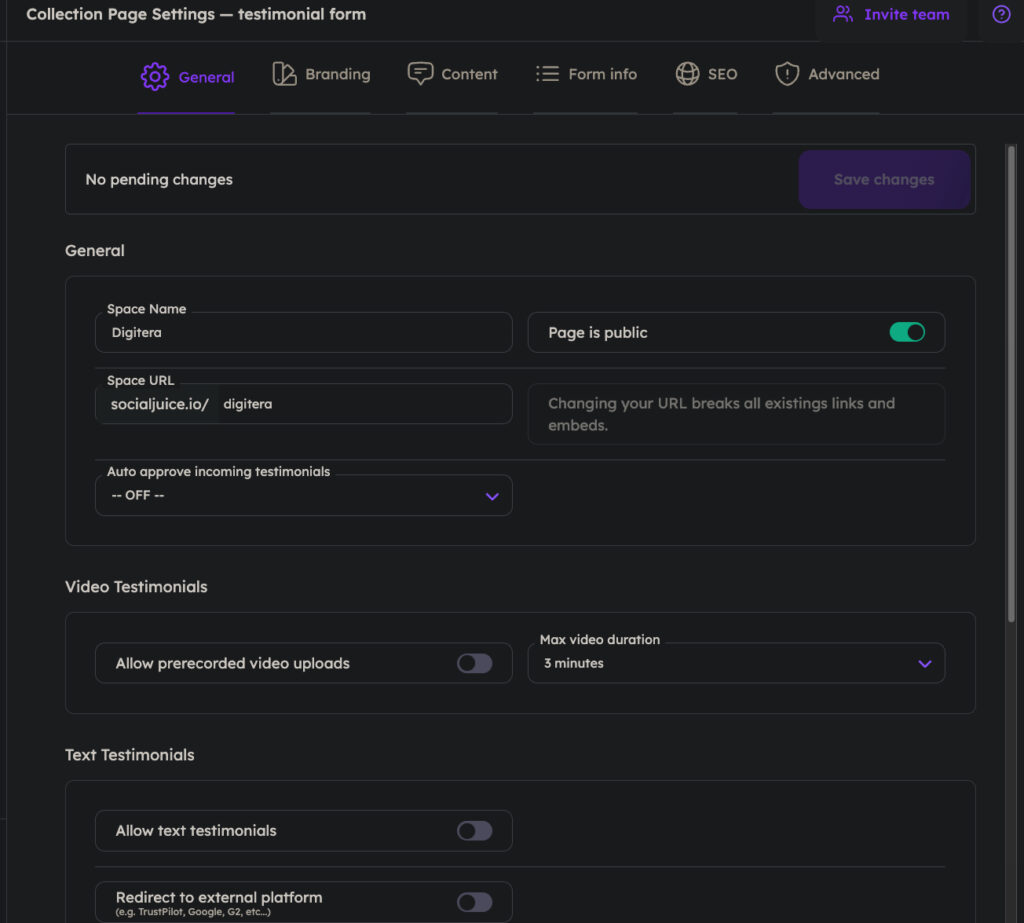
- From there, click on the Edit Form button in order to configure the settings for your Form Collection link.
- There are many settings that allow you to configure the Titles, Body Text and Images. Overall though, you should see something like this when you’re done:
Video Collection Wizard Example
Displaying Your Videos On Your Website
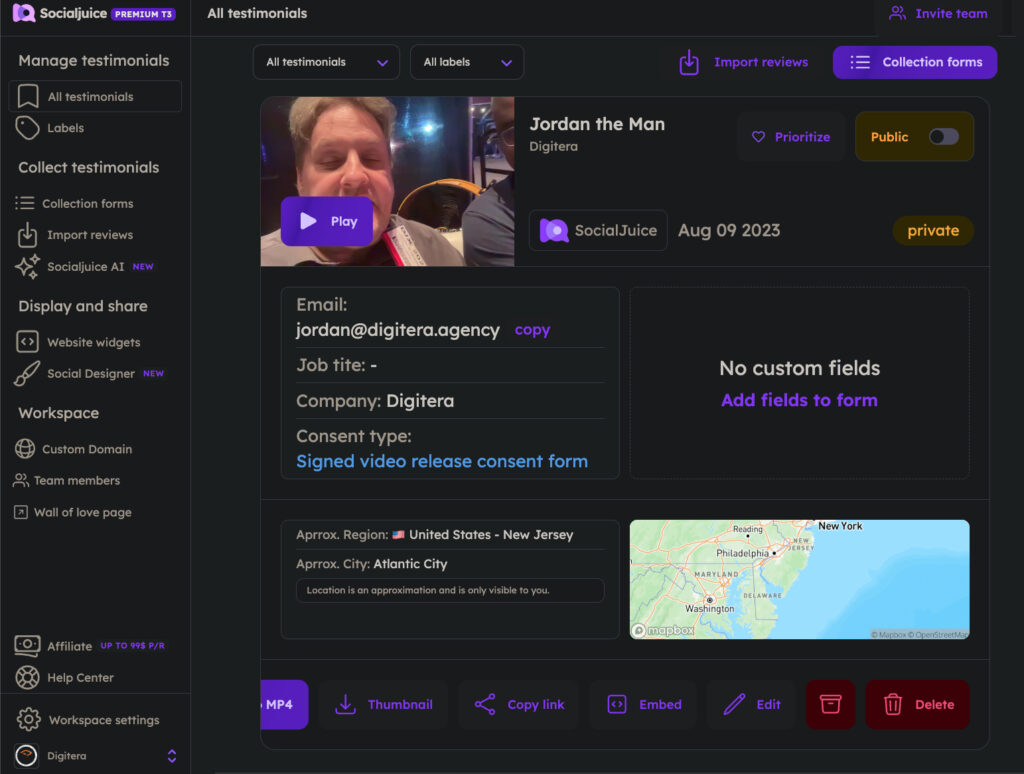
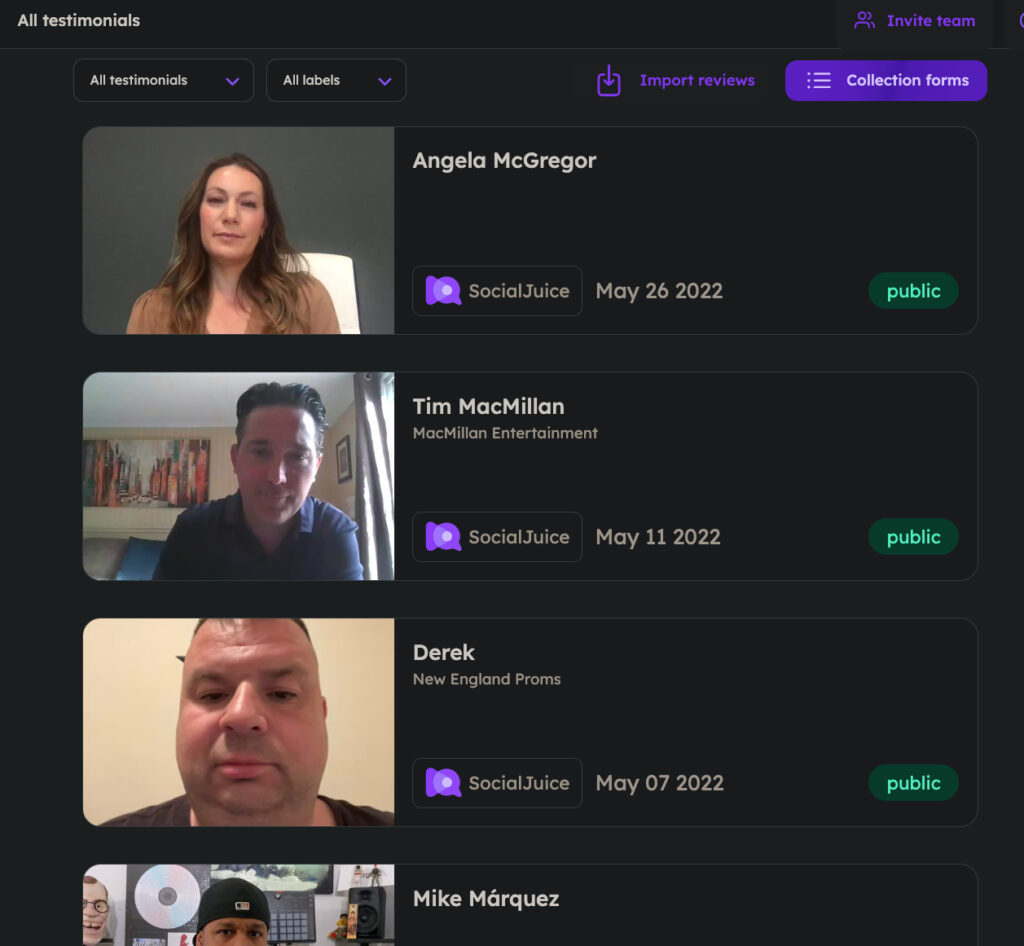
Approving your videos is done from the main Video Summary page, as seen here. Simply preview your videos, and push the ones that you approve to Public.
There are a few different Display Types, here are the main two.
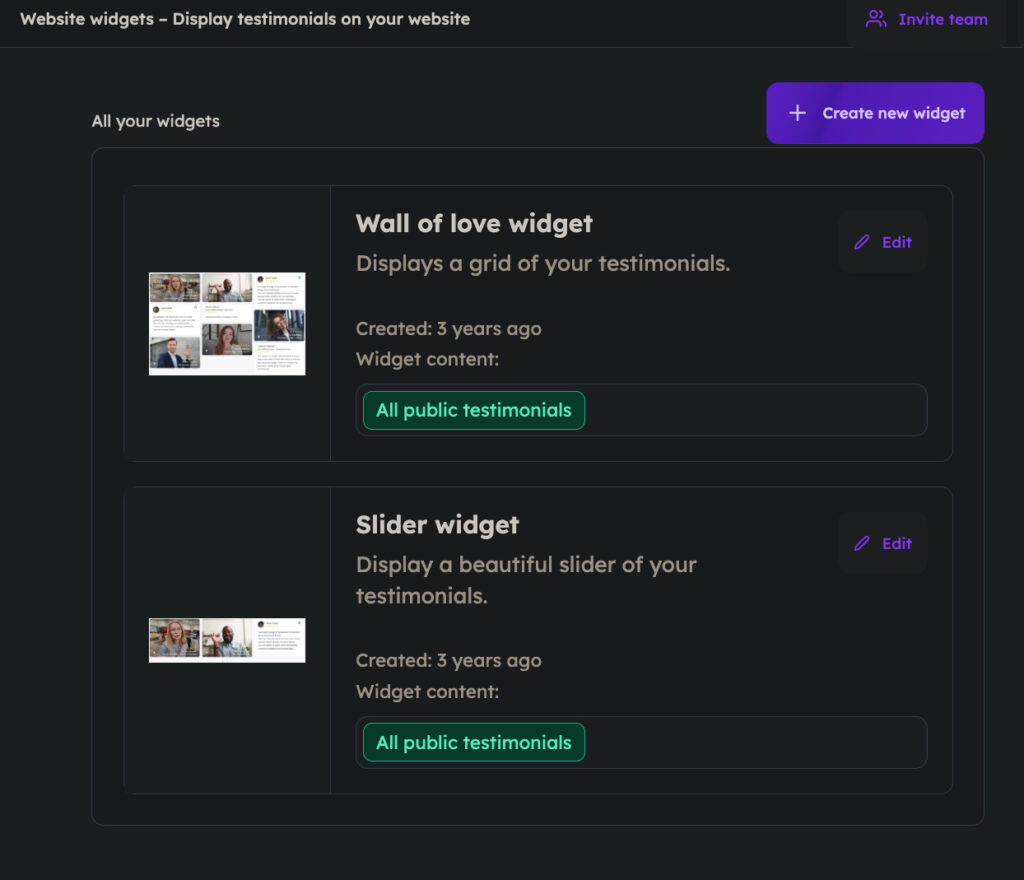
For myself, I prefer the Slider Widget, which is the same as the example I mentioned above on our own site. Clicking on Slider Widget brings you to this page.
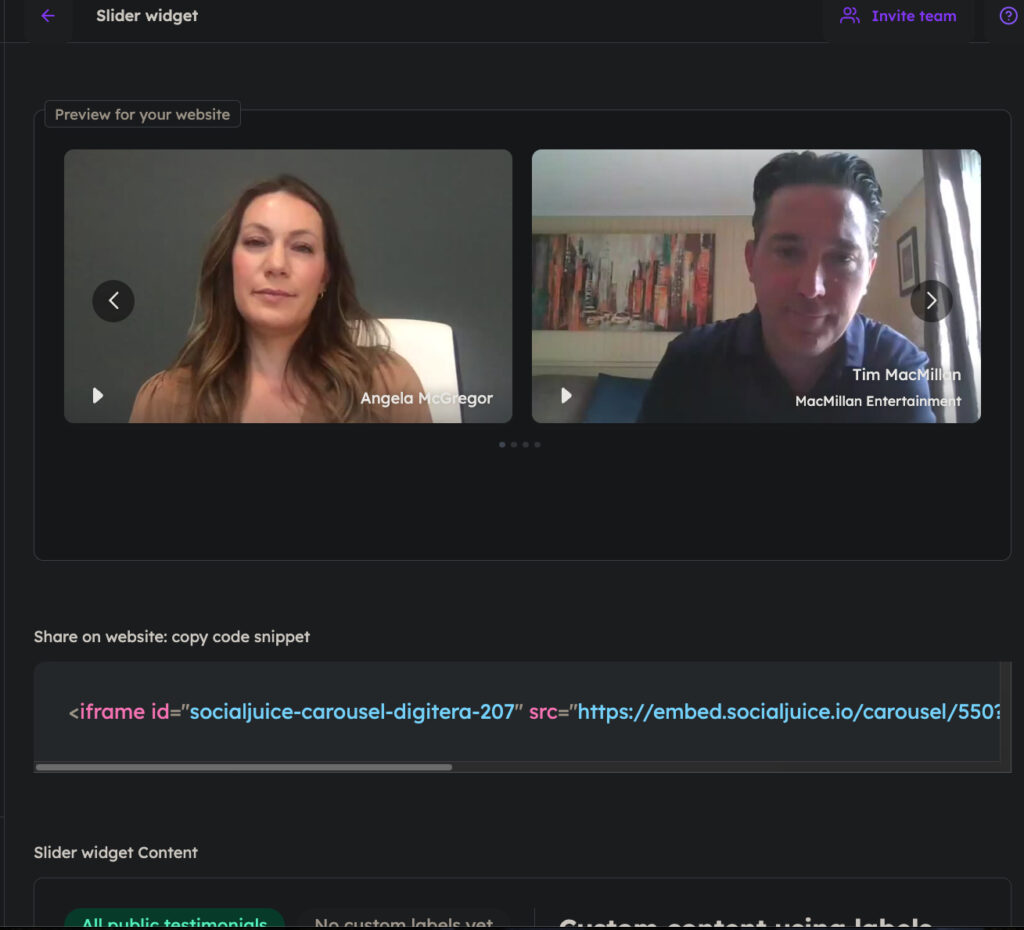
The code snipper that you need to embed is viewable right under the preview of the video layout. It’s a simple iframe, which any decent web guy will be able to handle. (And if you don’t have a decent web guy, hit us up!)
Wrapping Up: Deliverables & Next Steps
Using SocialJuice offers a much more productive tool for video testimonials and reviews. Most importantly, it puts the entire process within your control – the big review platforms don’t allow you any sort of control whatsoever. Of course, using SocialJuice doesn’t stop a disgruntled customer from posting a review on Google, Facebook, TK/WW or similar, but it’s a good start. Perhaps showcasing actual videos from your satisfied customers will allow you to get ahead of any potential problems down the road.
You’re free to sign up on SocialJuice on your own. The owners name is Sander, and he’s very helpful. However, if you need a hand, feel free to reach out to us.
Jordan St. Jacques is the President/Lead Digital Marketer at Digitera.Interactive in Ottawa, Ont., Canada.